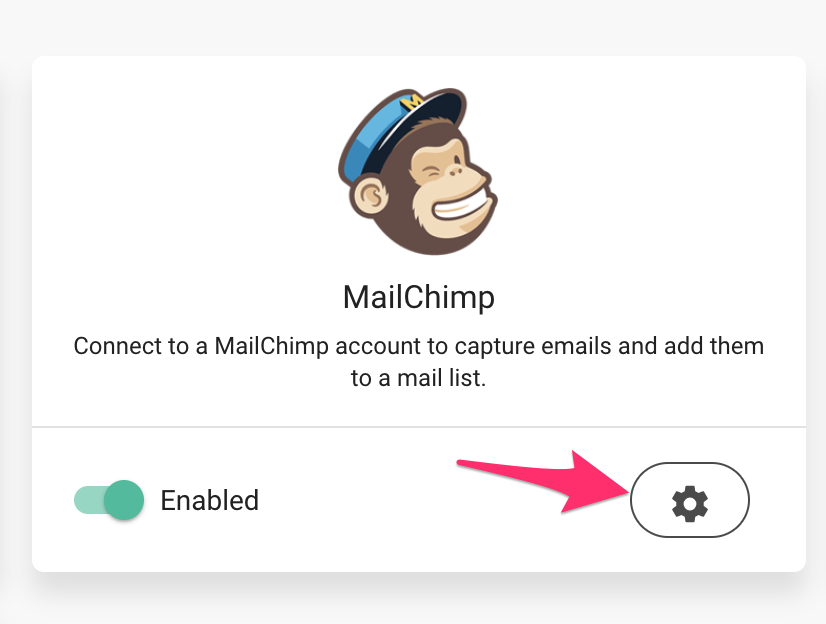
The Mailchimp integration allows you to collect email submissions from your site visitors and have these sent directly to a Mailchimp list of your choice.
To get started you must first create an account with Mailcimp. Mailchimp offers a free package for up to 2,000 email contacts and 12,000 email sends per month.
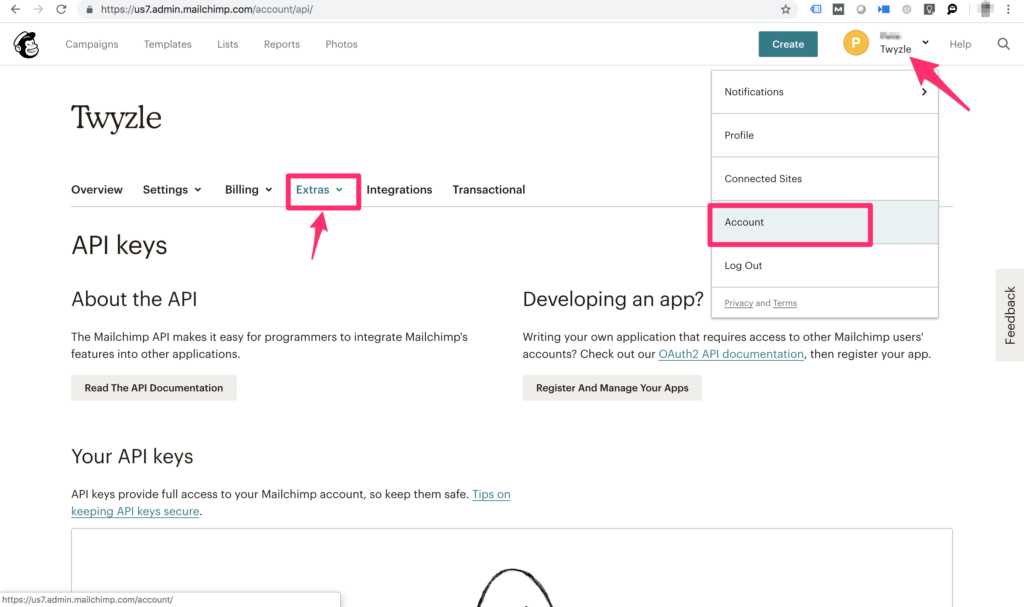
Once your account is created, navigate to the api page under Accounts Settings > Extras > API Keys
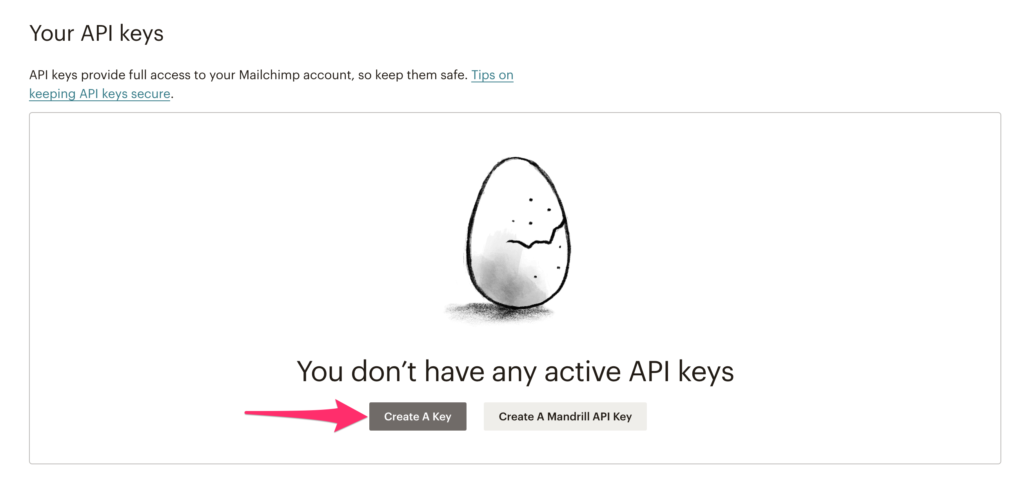
You’ll then need to create an api Key:
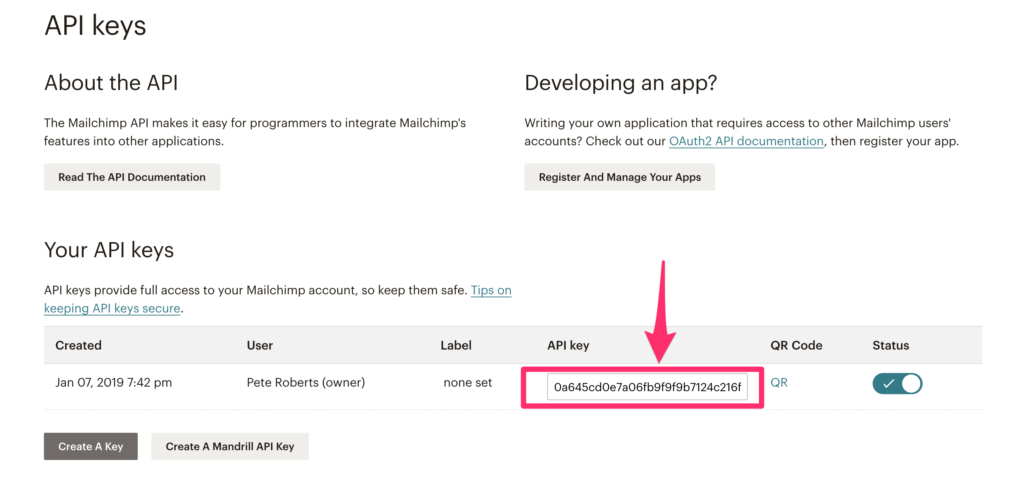
Next, copy the api key – we’ll need this later.
The next step is to create a list. Navigate to “Lists” and click the “Create list” button.
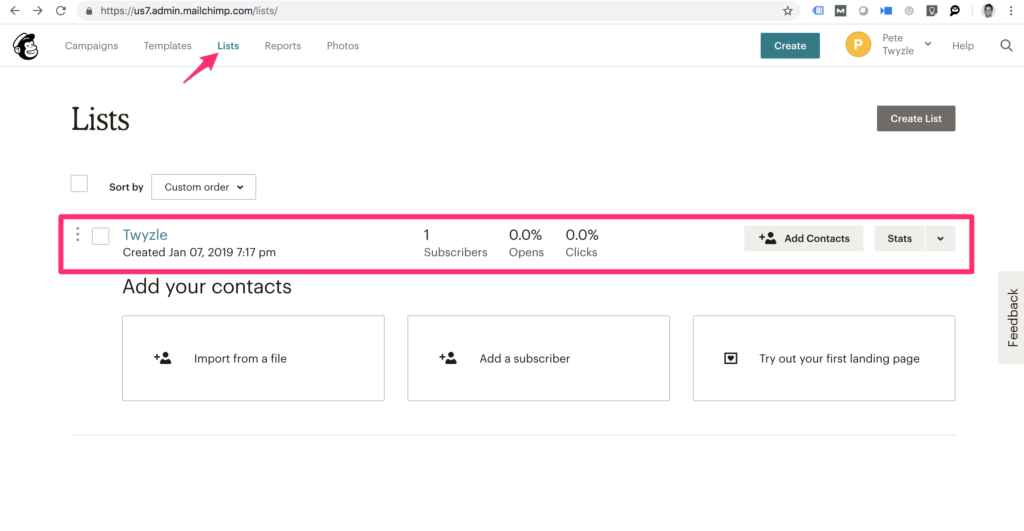 You’ll then be asked to enter some list details:
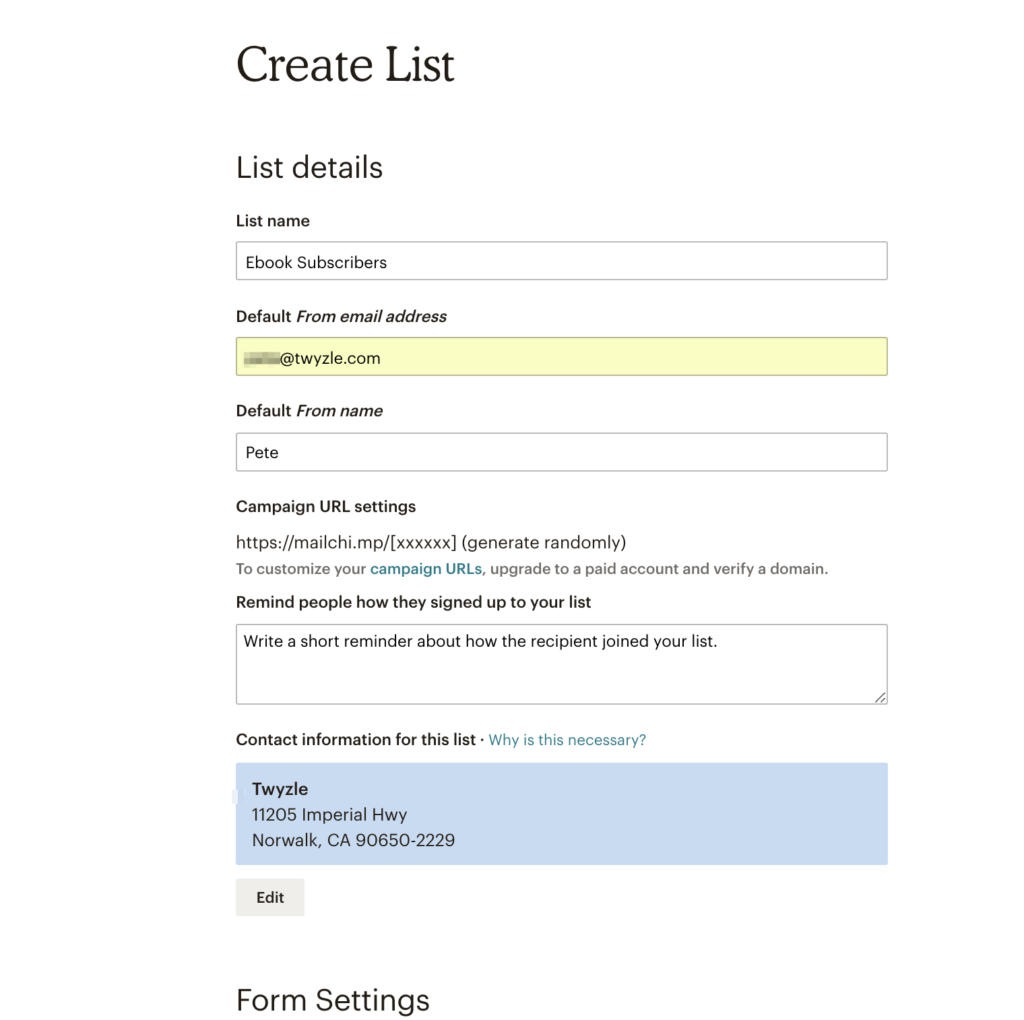
Once complete, save the new list and head back to Twyzle.
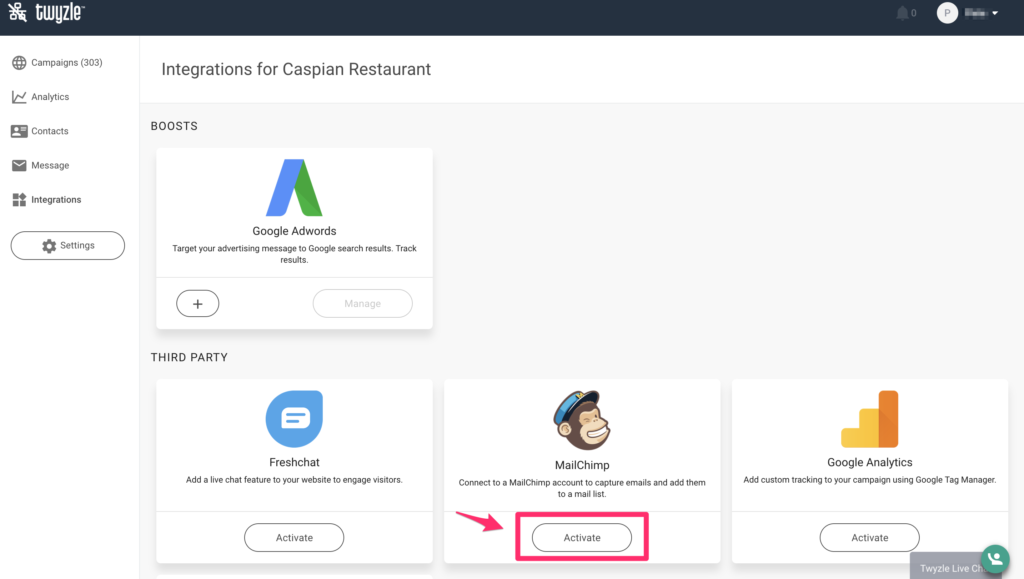
Find the site you want to activate Mailchimp > click on the settings menu in the top right corner and select “Integrations” from the list.

Next, click the Mailchimp “activate” button and enter the API key you copied earlier from Mailchimp.
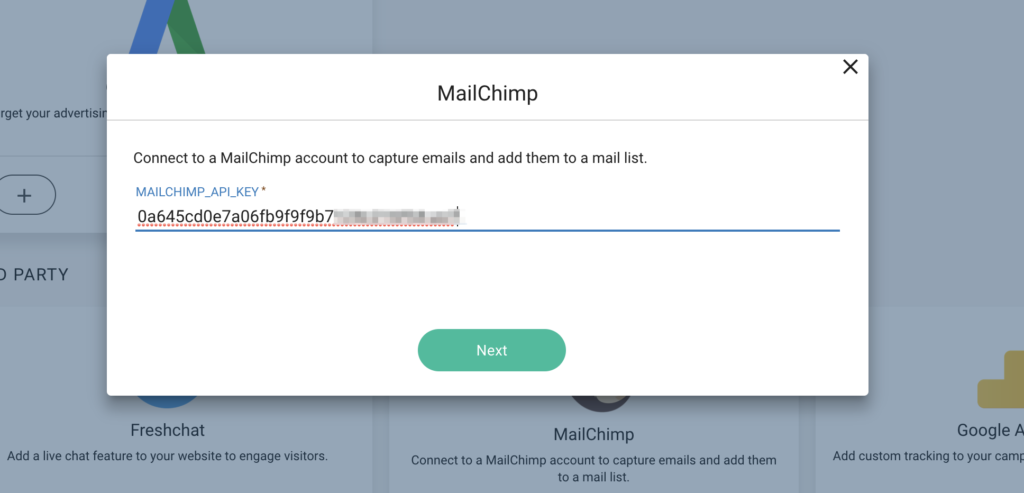
Click next and select the list you would like to send your collected emails to:

Save the list and head back to the site editor. You’ll now notice that there is a new block type available when you select to add a new block:

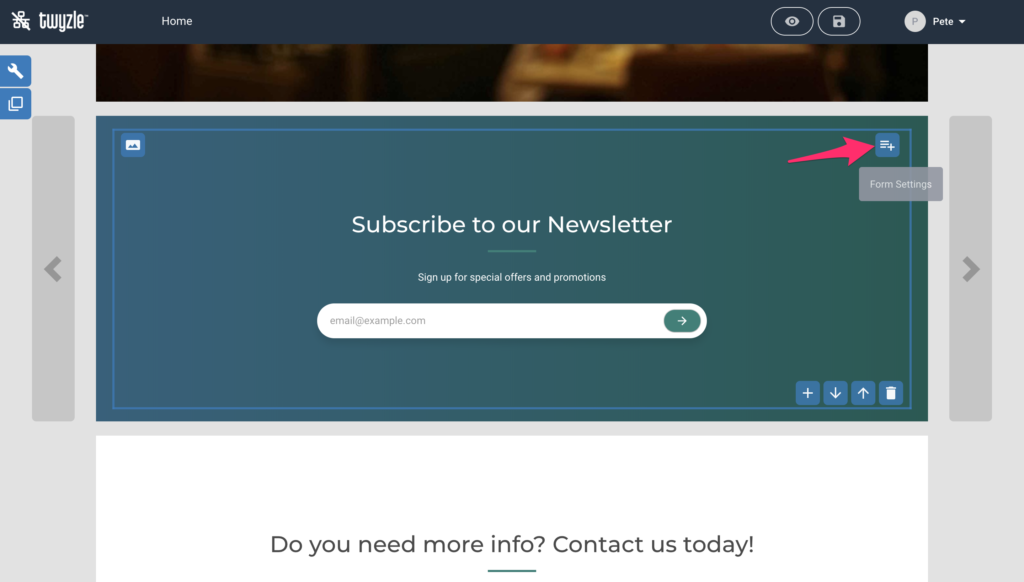
You can now customize the design and message of your block. If you want to send users to a custom URL i.e to download a pdf or ebook, you can configure the behavior by clicking on the form settings link:
All done! Now every time a user submits this form, they will be added to your Mailchimp list.