
Google tag manager is a free tool that allows you manage and deploy marketing tags (snippets of code or tracking pixels) on your website without having to modify the code.
Once it’s installed you will be able to add tracking code from common applications such as:
- Google Analytics
- Hubspot
- and thousands more
In this guide we’ll show you the simple steps needed to create your account and connect it with Twyzle.
-
Create an account
Visit tagmanager.google.com to Create an account.
Enter an account name and optionally indicate whether you’d like to share data anonymously with Google and others.
Click Continue.
Enter a descriptive container name and select the type of content as > Web
Click Create.
Review the Terms of Service and click Yes if you agree to those terms.
2. Install the tag
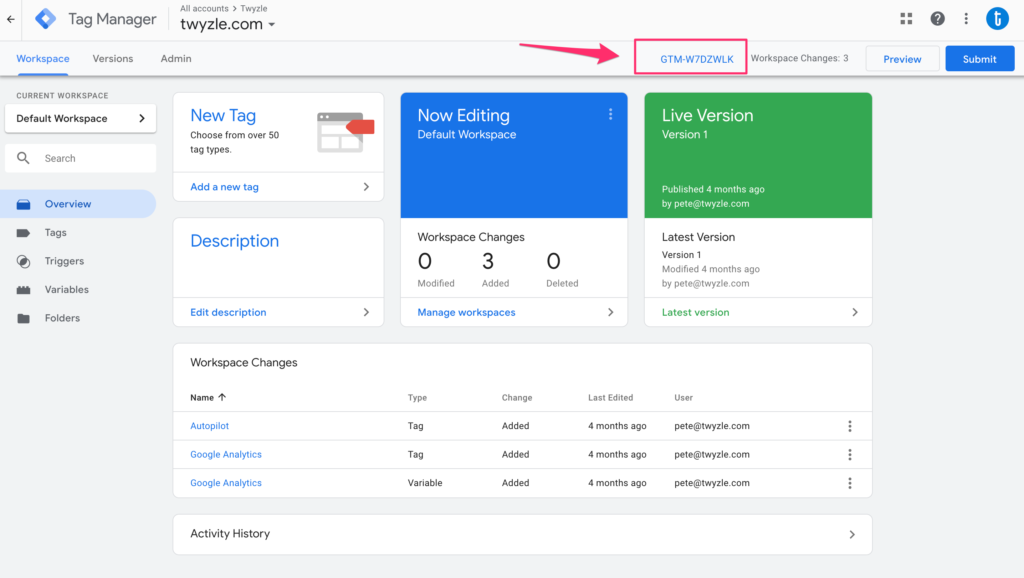
In Tag Manager, click Workspace.
Near the top of the window, find your container ID, formatted as “GTM-XXXXXX“.
Navigate to the Twyzle Integrations page for your website:
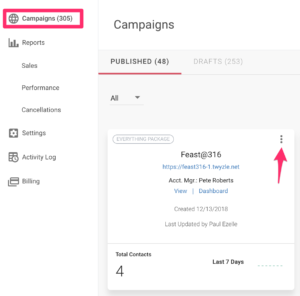
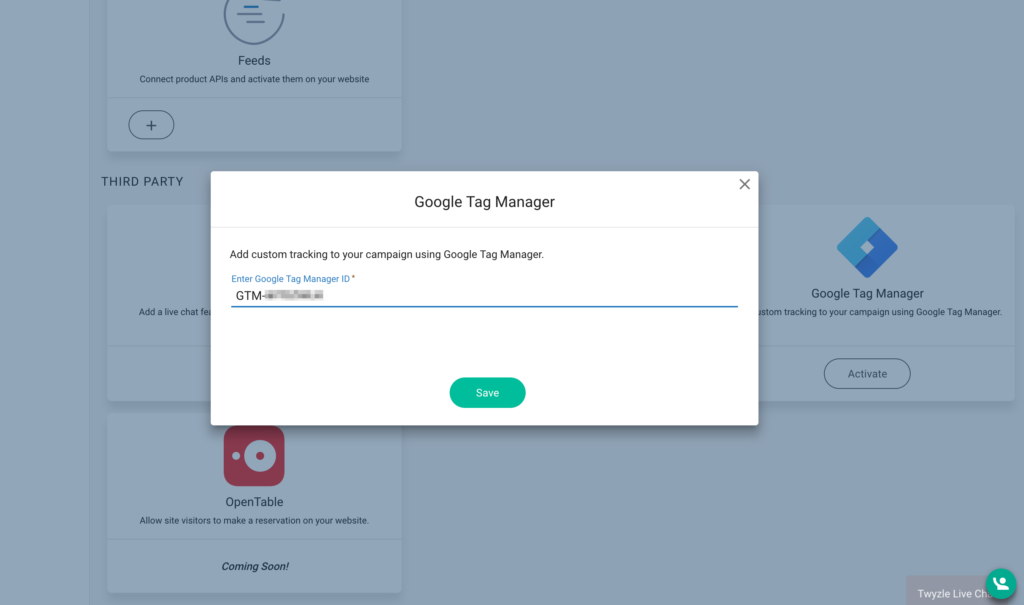
Next, find the integration labelled. Google Tag Manager and click activate.
Finally. Paste the container ID into this box and hit save. Your tag manager code will now be installed on all of your pages.
3. Configure Your Tags
Check out these guides for specific examples of how to add common tracking pixels inside Google Tag Manager:
Google Analytics