To enable live chat on your landing page you must first create a Free Freshchat account.
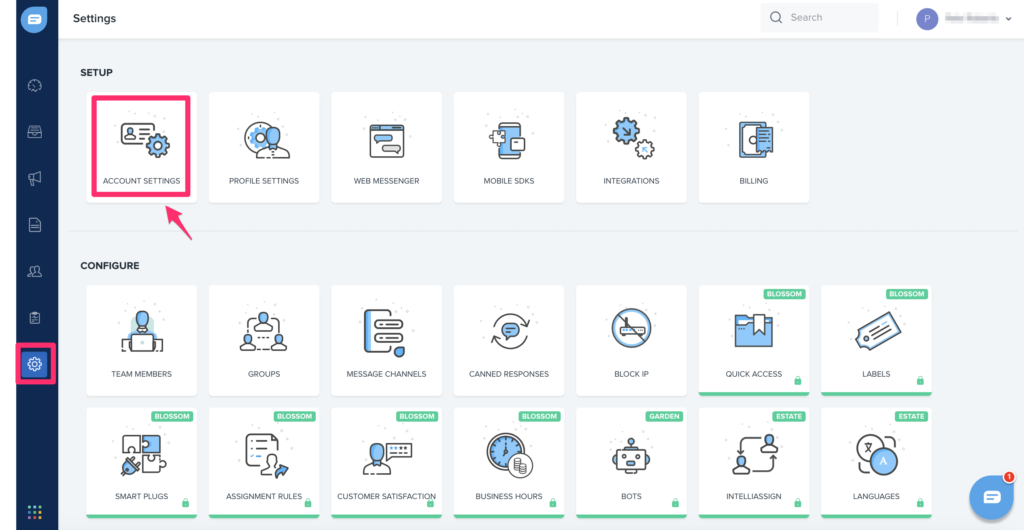
Once your account is created, navigate to account settings:
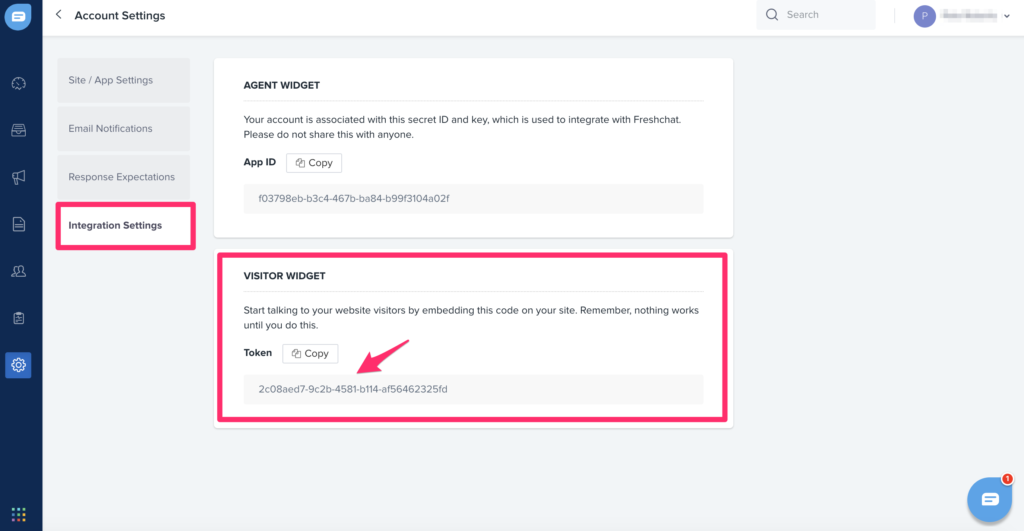
Next click on Integration settings and copy the Visitor Widget Token.
Back in the Twyzle dashboard, navigate to the Integrations page for the site you would like to add the live chat to:

Then select the Apps tab.
Finally, scroll to the Freshchat integration and click on ‘Activate‘. Next enter the token you copied earlier:
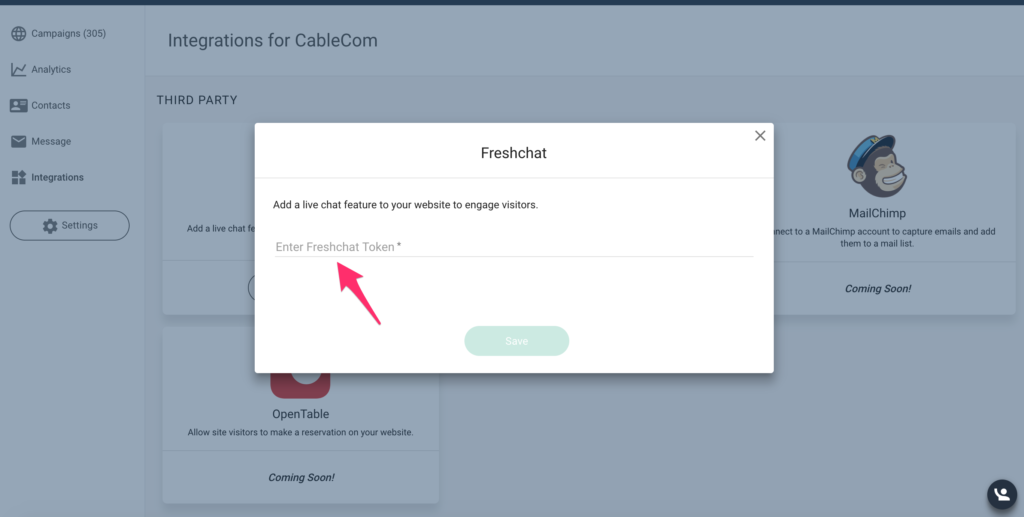
Click save.
That’s it, your livechat widget will now appear on the site!
Customization Options
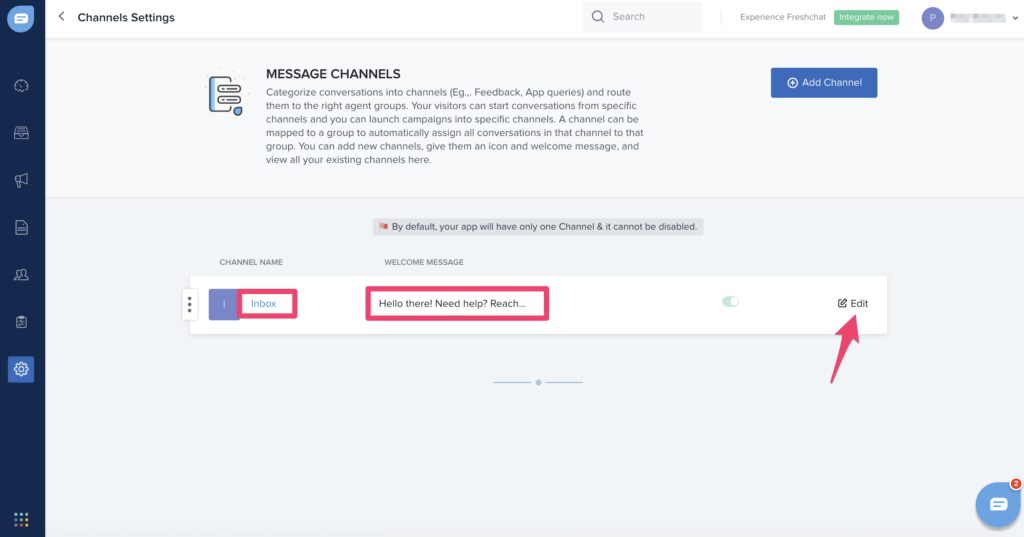
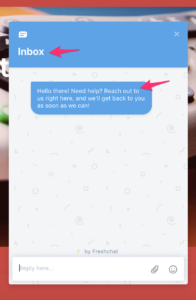
If you’d like to customize the default message or title of the livechat widget – As shown here:
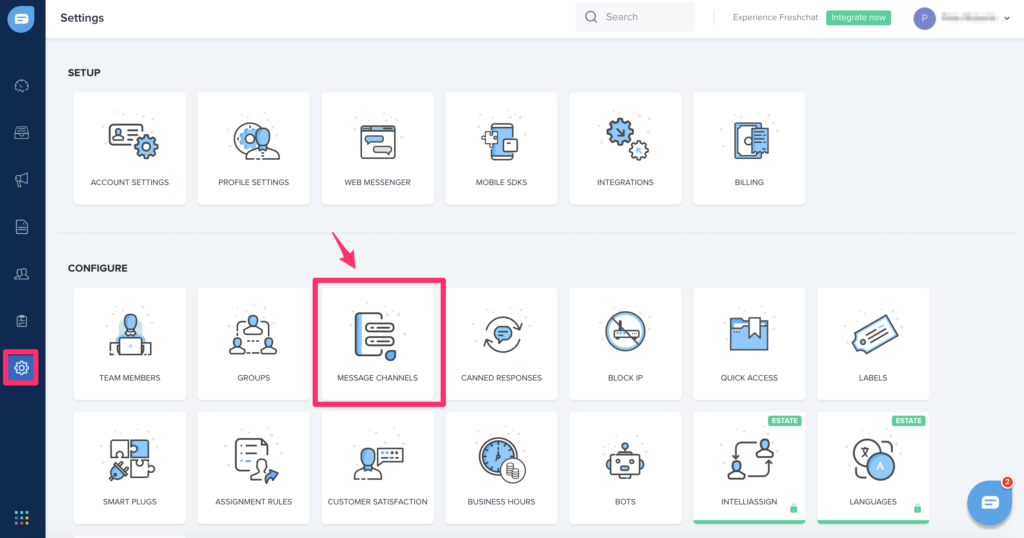
Navigate to settings and click “message channels.”
Then simply edit the message displayed: